How to Install IPTV on Firestick (2026 Step-by-Step Guide)
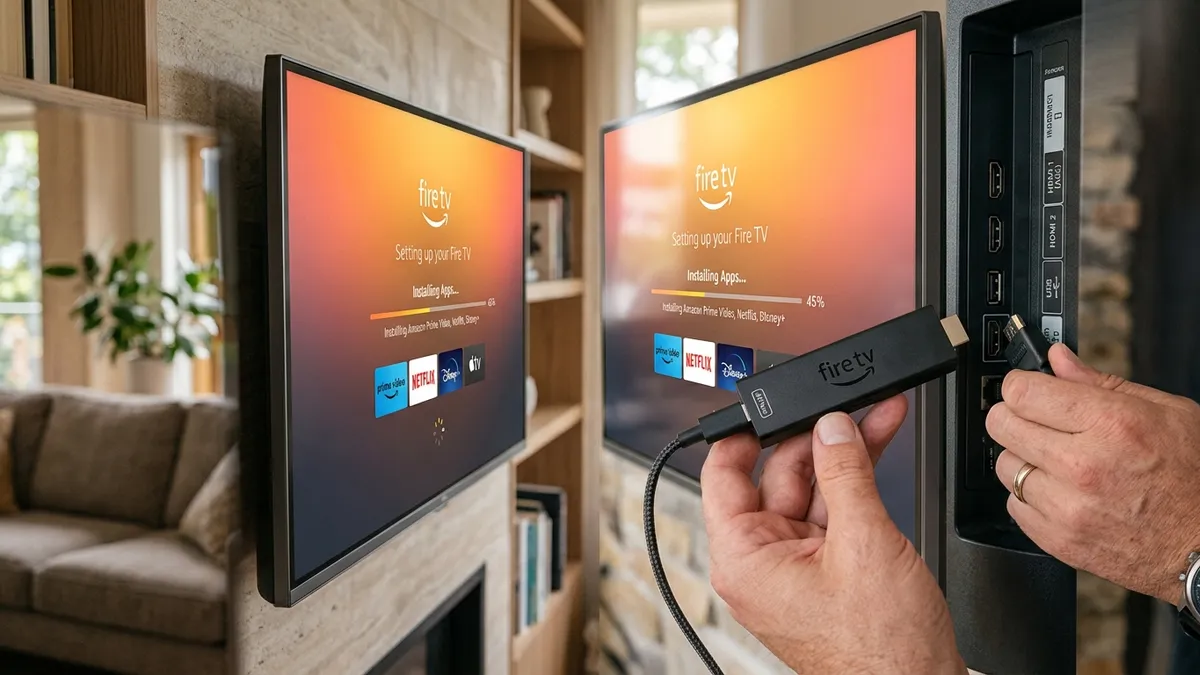
How to Install IPTV on Firestick (2026 Step-by-Step Guide)
Amazon Firestick continues to be the #1 device of choice for cord-cutters worldwide in 2026. Whether you own an Amazon Firestick 4K Max, Firestick Lite, or the powerful Fire TV Cube, installing an IPTV service transforms your television into an unconstrained streaming powerhouse with over 22,000+ live international channels, sports networks, and 120,000+ on-demand movies.
In this ultimate 2026 tutorial, we will take you through the complete, step-by-step process of installing and setting up an IPTV service like VocoTV on your Amazon Firestick.
Why Amazon Firestick is the Best IPTV Device in 2026
The Amazon Firestick is ideal for IPTV streaming for several reasons:
- Hardware Acceleration: Modern Firesticks easily decode HEVC / H.265 4K 60FPS video streams without heating up or stuttering.
- Wi-Fi 6 & 6E Support: Newer generations (like Firestick 4K Max 2nd Gen) deliver blazing-fast wireless speeds, eliminating local packet loss.
- Android-Based Flexibility: Fire OS allows easy sideloading of top-tier IPTV players like TiviMate, IPTV Smarters Pro, and XCIPTV.
- Extreme Portability: Plug your Firestick into any hotel TV or vacation home display, and your entire channel lineup travels with you.
Prerequisites: What You Need Before You Begin
Before starting the setup, make sure you have:
- An Amazon Firestick / Fire TV connected to HDMI and high-speed Wi-Fi (at least 25 Mbps recommended for 4K).
- An Active IPTV Subscription: If you don't have one yet, grab a high-performance, buffer-free plan from the Official VocoTV Pricing Page. You will need your Username, Password, and Server Portal URL (M3U / Xtream Codes).
- 5 to 10 Minutes of Free Time.
Step 1: Enable Developer Options on Firestick (2026 Method)
In recent Fire OS updates, Amazon hides the "Developer Options" menu by default. Follow this quick trick to reveal it:
- Turn on your Firestick and go to Settings (the gear icon on the far right of the home bar).
- Click on My Fire TV (or Device & Software).
- Click on About.
- Highlight your Fire TV Stick name and press the Center Select button on your remote 7 times rapidly.
- You will see a notification at the bottom saying: "No need, you are already a developer."
- Press the Back button on your remote. You will now see Developer Options listed under About!
- Click Developer Options > Select Install Unknown Apps (or Apps from Unknown Sources) > Set it to ON.
Step 2: Install the Downloader App
Because IPTV players are specialized applications, we use the free Downloader tool from the official Amazon Appstore to download them directly.
- Go back to your Firestick Home Screen and select Find (magnifying glass) > Search.
- Type
Downloaderusing the on-screen keyboard. - Select Downloader (orange icon with a white downward arrow).
- Click Download / Get to install the app.
- Once downloaded, click Open.
- When prompted, click Allow so Downloader has permission to access files and download your IPTV APK.
- Click OK on the welcome prompt.
Step 3: Install Your Preferred IPTV Player (IPTV Smarters or TiviMate)
You can choose between the two most popular IPTV players on Firestick: IPTV Smarters Pro or TiviMate.
Option A: Installing IPTV Smarters Pro (Recommended for Beginners)
- Open the Downloader app.
- In the URL box on the Home tab, enter the shortcode:
250931(or enterhttps://www.iptvsmarters.com/smarters.apk). - Click Go. The APK download will begin automatically.
- Once completed, click Install on the bottom right.
- After installation finishes, click Done, then click Delete to remove the temporary installation file and save Firestick storage.
Option B: Installing TiviMate (Best UI for Advanced Users)
- In Downloader, type shortcode:
272483(orhttps://tivimate.com). - Click Go and install the TiviMate application.
- Once installed, click Done and delete the APK.
Step 4: Configure Your VocoTV Subscription via Xtream Codes
Now, let's connect your player to VocoTV's global streaming servers.
- Launch IPTV Smarters Pro (or TiviMate) from your Apps & Channels menu.
- Select Login with Xtream Codes API (this provides the fastest loading speed and automatic EPG syncing).
- Fill in the details provided in your VocoTV activation email:
- Any Name:
VocoTV Official - Username:
Your VocoTV Username - Password:
Your VocoTV Password - Server URL:
http://your-server-url:port
- Any Name:
- Click Add User or Login.
- The application will fetch your channel lists, VOD movies, TV series, and the live Electronic Program Guide (EPG). This usually takes 30 to 60 seconds on the first launch.
Step 5: Optimize Firestick for Buffer-Free IPTV Streaming
To ensure zero buffering during live sports or 4K streams, apply these quick tweaks:
- Change Stream Format to HLS / MPEG-TS: Inside IPTV Smarters Settings > Stream Format, select HLS or MPEG-TS depending on your internet provider.
- Hardware Acceleration: Go to Player Settings inside your IPTV app and switch Video Decoder to Hardware (HW).
- Clear App Cache Regularly: Go to Firestick Settings > Applications > Manage Installed Applications > IPTV Smarters > Clear Cache.
- Use a Fast DNS: Change your Wi-Fi DNS to Cloudflare (
1.1.1.1) or Google (8.8.8.8) to bypass ISP throttling.
Frequently Asked Questions (FAQ)
Can I install IPTV on older Firestick models?
Yes! IPTV works on all Amazon Firestick models (1st Gen, 2nd Gen, 4K, 4K Max, Lite, and Fire TV Cube). For the smoothest 4K playback, Firestick 4K Max or Fire TV Cube is recommended.
Do I need a VPN for IPTV on Firestick?
While not strictly required with VocoTV's anti-freeze private servers, using a reputable VPN (like ExpressVPN or NordVPN) helps prevent ISP bandwidth throttling during peak sports matches.
How many devices can I use with my subscription?
VocoTV offers multi-connection plans (from 1 to 5 simultaneous streams) so your whole family can watch on Firesticks, phones, and Smart TVs at the same time. Check our Pricing Plans for details.
Conclusion
Installing IPTV on your Amazon Firestick in 2026 takes less than 10 minutes and gives you unlimited access to global television, live sports, and thousands of 4K on-demand movies.
Ready to experience high-definition, buffer-free streaming? Get Your VocoTV Subscription Now and start streaming today!