How to Install Vocotv on Firestick (2026 Complete Guide)
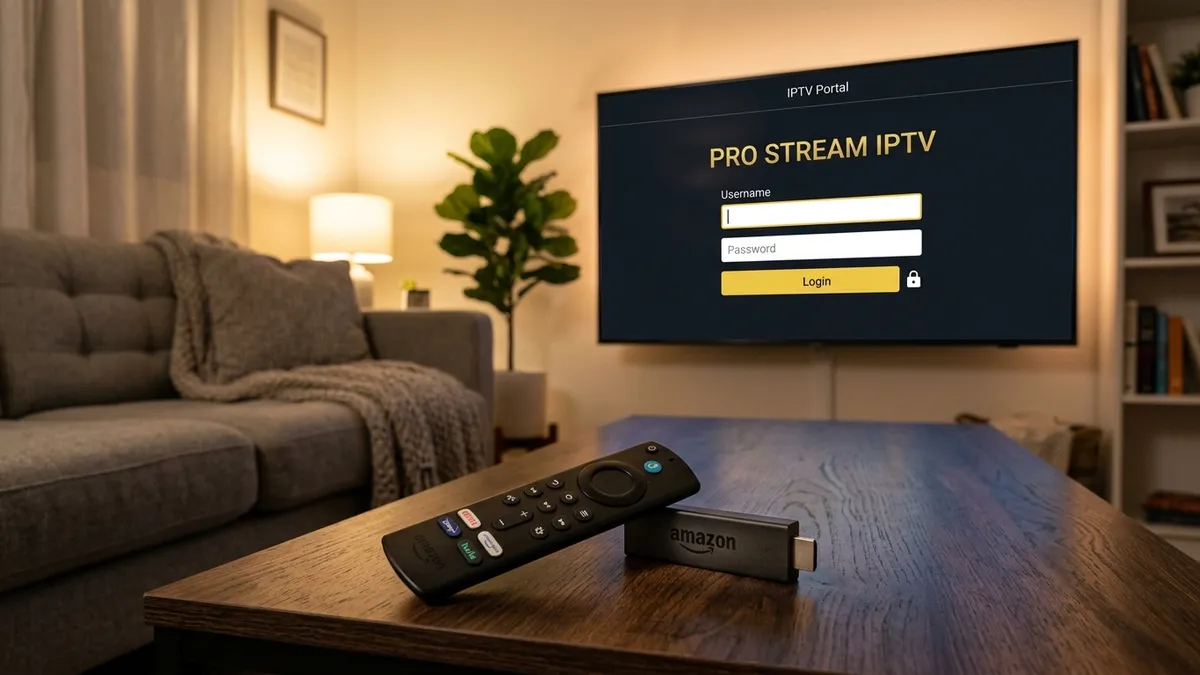
The Ultimate Guide: How to Install Vocotv on Amazon Firestick
When it comes to cord-cutting and digital streaming, very few devices offer the simplicity, portability, and sheer processing power of the Amazon Fire TV Stick. Combined with the unparalleled channel selection and ultra-low latency of the Vocotv streaming platform, you can transform an ordinary television into a global entertainment hub in a matter of minutes.
In this comprehensive, step-by-step guide, we will walk you through the exact process to securely install and optimize the Vocotv IPTV application on any generation of the Amazon Firestick (including the Firestick 4K Max and Fire TV Cube). By following this tutorial, you will unlock over 18,000 live global channels, thousands of VOD movies and series, and ensure that your streams remain completely buffer-free.
If you haven't yet secured your subscription, make sure you visit the Vocotv Homepage and check out our affordable Pricing Plans before proceeding.
Why Choose a Firestick for Vocotv?
The Amazon Firestick is currently the world’s most popular dedicated streaming device for several crucial reasons:
- Android Architecture: Fire OS is built heavily upon Android. This means that sideloading customized, powerful APKs (Android Package Kits) like the official Vocotv app is incredibly straightforward. You aren't locked into a restrictive ecosystem like you might be with some other proprietary smart TVs.
- Wi-Fi 6 Support: Modern Firesticks (like the 4K Max) support Wi-Fi 6. When streaming uncompressed 4K sports or massive VOD files via Voco TV, having maximum wireless bandwidth ensures you don't experience annoying lag spikes.
- Hardware Decoding: Firesticks contain dedicated hardware chips specifically designed to decode H.265 (HEVC) streams efficiently, which is the exact codec utilized by our high-performance global servers.
- Portability: You can literally pull the Firestick out of your living room TV, throw it in your suitcase, and plug it into a hotel television across the world. Because Vocotv is borderless, your television subscription travels with you.
Prerequisites: What You Need Before Starting
Before you grab your remote, ensure you have the following ready:
- An Active Vocotv Account: You must have your Username, Password, and Server Portal URL ready. If you don't have these, please visit our Setup Guide to register.
- A Fire TV Device: Plugged in, connected to the internet, and updated to the latest Fire OS software version.
- 10 Minutes of Time: The installation process is fast and requires absolutely zero technical expertise or coding knowledge.
Step 1: Preparing Your Firestick for Sideloading
Amazon’s default security settings prevent users from installing applications that are not directly hosted on the official Amazon Appstore. Because Vocotv is a specialized, direct-to-consumer IPTV portal, we provide the application directly to bypass Appstore restrictions and update delays.
To install it, we first need to enable "Apps from Unknown Sources."
Enabling Developer Options
- Turn on your television and navigate to the Home Screen of your Firestick.
- Use your directional pad to scroll over to the Settings gear icon on the far right of the menu bar.
- Scroll down and select My Fire TV (on some older models, this may simply be called 'Device').
- Look for Developer Options.
- Note: If you do not see Developer Options, do not panic. Amazon hides it by default on newer updates. Click on About, then highlight Fire TV Stick and click the center 'Select' button on your remote rapidly 7 times. A message will appear saying "No need, you are already a developer." Press the back button, and Developer Options will now be visible.
- Click on Developer Options.
- Select Install Unknown Apps (or 'Apps from Unknown Sources' on older models).
- Ensure this setting is turned ON.
You have now successfully unlocked your Firestick, allowing you to install powerful third-party software like the Vocotv application.
Step 2: Installing the Downloader App
Since we cannot use a standard web browser to easily download and extract APK files on a Firestick, we utilize a brilliant free utility called Downloader. This app allows you to type in a direct URL (or a shortcode) and immediately download the installation file.
- Press the Home button on your remote to return to the main dashboard.
- Navigate to the Find magnifying glass icon.
- Select the Search box and type the word
Downloader. - As you type, you will see "Downloader" appear in the suggestions below. Click it.
- You will see an orange icon featuring a white download arrow. Select this app.
- Click Download or Get to install the application.
- Once installed, click Open.
- A prompt will appear asking if Downloader can access photos, media, and files on your device. Click Allow (this is necessary so the app can save the APK file to your storage drive).
- Click OK on the quick start guide popup.
Step 3: Downloading and Installing the Vocotv App
Now that Downloader is configured, we can fetch the official Vocotv app.
- Inside the Downloader app, you will see a URL entry field on the Home tab that says
http://. - Click into this field to open the virtual keyboard.
- Enter the official Vocotv shortcode or direct APK link provided in your activation email. (If you are unsure of the current link, check your welcome email or contact our support team).
- Click Go.
- Downloader will immediately connect to our high-speed servers and begin downloading the APK file. The file is relatively small and should only take a few seconds on a standard broadband connection.
- Once the download hits 100%, an installation prompt will automatically appear on your screen.
- Scroll down to the bottom right and click Install.
- Wait for the "App Installed" confirmation screen.
- Click Done (do not click Open just yet).
- You will be returned to the Downloader app. A prompt will ask if you want to delete the APK file. Click Delete, and then Delete again to confirm. This is an excellent habit to form, as it frees up valuable storage space on your Firestick now that the installation is complete.
Step 4: Logging into Vocotv and Configuring Settings
With the application successfully installed on your internal storage, it is time to log in and start exploring.
- Hold down the Home button on your Firestick remote until a quick menu pops up.
- Select Apps to view your full app library.
- Scroll down to the very bottom of the list. You will find the newly installed Vocotv icon.
- Pro Tip: Highlight the app, press the Menu button on your remote (the one with three horizontal lines), and select Move to Front. This places Vocotv right on your main dashboard for immediate access every time you turn on your TV.
- Click to launch the application.
The Authentication Process
Upon opening the app for the first time, you will be presented with a login screen. Depending on the version of the app you downloaded, you may be asked to log in via Xtream Codes API (Username/Password) or by utilizing an M3U Playlist URL.
We highly recommend using the Xtream Codes API method as it is significantly faster and syncs VOD metadata much more efficiently.
- Name: Enter any name you like (e.g., "Living Room TV").
- Username: Enter the exact username provided in your welcome email. (Note: Usernames are case-sensitive).
- Password: Enter your exact password.
- URL: Enter the server portal URL provided by our team.
- Click Add User or Login.
The application will take a moment to authenticate with our servers and download the latest Electronic Program Guide (EPG) data, channel lists, and movie posters.
Once complete, you will be greeted by the stunning, easy-to-navigate dashboard.
Step 5: Essential Optimizations to Prevent Buffering
While the installation is complete, a true streaming veteran knows that optimizing the device is just as important as downloading the app. To guarantee that you never experience buffering during a major sporting event or movie premiere, implement the following quick fixes.
1. Hardwire Your Connection (If Possible)
Wi-Fi is notoriously volatile. Microwave ovens, thick walls, and your neighbors' routers can all cause invisible interference that leads to micro-stutters and dropped packets. For absolute perfection, purchase an Amazon Ethernet Adapter for your Firestick and run a direct hardwire to your router.
2. Clear Your Device Cache Regularly
The Firestick only has a limited amount of RAM. Over time, background apps consume this memory, leaving very little processing power available for decoding high-definition video.
- Go to Settings > Applications > Manage Installed Applications.
- Go through apps you use frequently (like Netflix, YouTube, and Vocotv itself) and click Clear Cache. Do not click Clear Data, as that will erase your login info.
3. Use a Reputable VPN (Optional but Recommended)
Depending on your geographic location and your specific Internet Service Provider (ISP), you may be subject to aggressive bandwidth throttling during peak evening hours or major broadcast events. ISPs intentionally slow down heavy video traffic to manage their local grid. Utilizing a high-quality VPN encrypts your traffic. When your ISP cannot see what data you are consuming, they cannot artificially throttle it, resulting in a buttery smooth Vocotv stream.
If you are still encountering playback issues after following these steps, be sure to read our dedicated guide on Vocotv Buffering Fixes.
Frequently Asked Questions (Installation)
Q: Do I need to jailbreak my Firestick to use Vocotv? A: No! Sideloading is a native feature built into the Android operating system. We are simply utilizing Amazon's built-in Developer Options to install an app from the internet. It does not void your warranty or "jailbreak" the device in a malicious way.
Q: Can I install this on multiple Firesticks in my house? A: Yes, you can install the application on as many devices as you own. However, simultaneous viewing depends entirely on the specific subscription package you purchased. Check our Pricing page to upgrade your concurrent connections.
Q: Does the app update automatically? A: Sideloaded applications generally do not update silently in the background like official Amazon store apps. When we release a major UI overhaul or feature upgrade, we will notify you, and you can simply download the new APK over the existing one using the Downloader app.
For more answers to common questions, head over to our comprehensive FAQ Page.
Exploring Alternative Apps and Devices
While the official Voco TV app is incredibly robust, you are not locked into using it. Because our service utilizes standard IPTV protocols, you can connect your subscription to almost any third-party player on the market.
If you prefer alternative interfaces, we highly recommend checking out our tutorials on Vocotv with IPTV Smarters. Furthermore, if you want to set up the service on an entirely different ecosystem, read our master Vocotv Review and User Guide to see how it performs on Apple TV and smart televisions.
Conclusion
Congratulations! You have successfully installed Vocotv on your Amazon Firestick. You've broken free from the restrictive chains of traditional cable, hidden fees, and limited content libraries.
Take some time to explore the massive VOD catalogs, customize your favorite channels list, and enjoy the pristine 4K streams. Welcome to the future of home entertainment.
If you encountered any critical errors during setup, please do not hesitate to reach out to our dedicated support staff via the Contact Page.