Vocotv Buffering Fix: How to Stop Streaming Lag in 2026
Vocotv Buffering Fix: How to Stop Streaming Lag in 2026
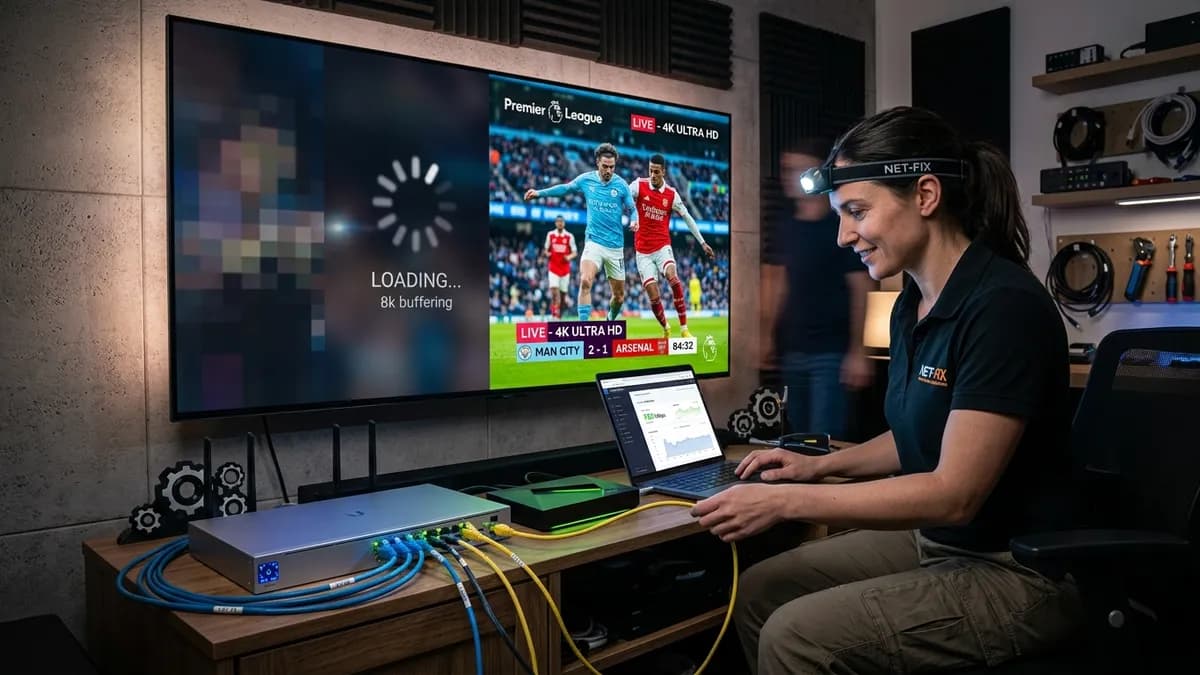
There is arguably nothing more infuriating in the world of modern digital entertainment than settling down on the couch to watch a highly anticipated live sports event or the finale of a hit television series, only for the screen to freeze. The dreaded buffering wheel spins endlessly, completely ruining the immersion and excitement.
If you are a subscriber to Voco TV, you already have access to one of the most robust and high-performing server infrastructures on the global IPTV market. Our Content Delivery Networks (CDNs) are engineered to push 4K bitrates simultaneously to thousands of concurrent users. Therefore, if you are experiencing "Vocotv not working" errors or continuous buffering, the bottleneck is almost certainly occurring somewhere between our broadcast node and your physical television screen.
In this exhaustive technical guide, we will break down the precise methodologies to diagnose, isolate, and completely eliminate lag from your streaming experience. By the end of this tutorial, your streams will be as reliable and smooth as traditional hardwired cable.
If you are a new user who hasn't yet set up your device properly, please refer to our main Setup Instructions before proceeding with deep technical troubleshooting.
Understanding the Anatomy of a Buffer
To fix the problem, you must first understand what buffering actually is.
When you request a video stream from our servers, your device does not download the entire movie at once. Instead, it downloads small "chunks" or "packets" of video data and stores them in a temporary memory vault called a buffer. As your media player renders the video on your screen, it continuously pulls from this buffer while simultaneously downloading the next chunk of video in the background.
Buffering occurs when your media player plays the video faster than your internet connection can download the next chunk. The video is forced to pause and wait for the download to catch up.
Therefore, our primary objective is to increase the speed and stability of data arriving at your device.
Phase 1: Local Hardware and Network Optimization
The vast majority of streaming issues originate within the user's home network.
Step 1.1: The Golden Rule - Hardwire Your Connection
Wi-Fi is a miracle of modern technology, but it is fundamentally flawed when it comes to sustained, high-bitrate continuous downloads. Wireless signals are subject to degradation from physical obstacles (walls, furniture), electromagnetic interference (microwaves, baby monitors), and channel congestion from your neighbors' routers.
If your streaming device (such as an Android Box, Smart TV, or PC) has an Ethernet port, use it. Run a physical Cat6 Ethernet cable directly from your router to your device. If you are using a device like an Amazon Firestick that lacks a native port, you can purchase an inexpensive OTG Ethernet Adapter.
If you must use Wi-Fi, ensure your device is connected to the 5GHz band on your router rather than the 2.4GHz band. 5GHz offers significantly higher bandwidth over short distances. For more device-specific networking tips, check out our Firestick Installation Guide.
Step 1.2: Reboot Your Entire Network Stack
Routers and modems are basically small computers. Over weeks or months of continuous uptime, their memory can become fragmented, leading to dropped packets and routing errors.
- Unplug the power cable from your modem.
- Unplug the power cable from your router.
- Unplug the power cable from your streaming device (Smart TV, Firestick, etc.).
- Wait a full 60 seconds.
- Plug the modem back in and wait for the lights to stabilize.
- Plug the router back in and wait for the Wi-Fi network to broadcast.
- Power on your streaming device.
This simple "power cycle" cures roughly 40% of all reported buffering complaints.
Phase 2: Device-Level Troubleshooting
If your network is solid, the issue might be your actual streaming hardware struggling to decode the high-quality video feed.
Step 2.1: Clear Application Cache
Over time, streaming apps accumulate massive amounts of temporary image and metadata files (like channel logos and movie posters). When the cache fills up, the device's RAM is choked, leaving no processing power to render video.
- Navigate to your device’s Settings.
- Go to Applications or App Manager.
- Locate the Vocotv app (or whichever third-party player you are using, like TiviMate or XCIPTV).
- Select Clear Cache. (Warning: Do not click Clear Data unless you are prepared to re-enter your login credentials).
- Relaunch the application.
Step 2.2: Free Up Internal Storage
A device with completely full internal storage will slow down drastically because it has no space to write temporary operating system files. Ensure your device has at least 1.5 GB to 2 GB of free space. Delete old apps, unused games, and clear out old update files.
Step 2.3: Adjust Player Settings (Hardware vs. Software Decoding)
Inside most advanced IPTV applications, you will find settings regarding the "Video Decoder."
- Hardware Decoding (HW): Uses the dedicated graphics chip in your device to decode video. This is usually the best option for high-end devices like the Nvidia Shield or Apple TV.
- Software Decoding (SW): Uses the device's CPU. If you have an older, budget Android box, Hardware Decoding might actually be faulty or unsupported for certain codecs. Try switching your player to Software Decoding (or vice versa) and see if the buffering immediately stops.
If you are using a third-party app and want to explore better alternatives, read our guide on Setting up IPTV Smarters.
Phase 3: ISP Throttling and the VPN Solution
If you have hardwired your connection, cleared your cache, and you still experience terrible lag—especially during the evening or on weekends—you are likely a victim of ISP Throttling.
What is ISP Throttling?
Internet Service Providers (like Comcast, Spectrum, BT, etc.) monitor the traffic of their users. During peak hours (typically 6 PM to 11 PM), local bandwidth grids become congested. To manage the load, ISPs employ deep packet inspection algorithms to identify high-bandwidth activities—specifically video streaming—and artificially slow down those specific connections. Your speed test might show 500 Mbps, but your connection to video servers is secretly capped at 5 Mbps.
The VPN Fix
A Virtual Private Network (VPN) creates an encrypted, impenetrable tunnel between your device and the internet. Because the data is scrambled, your ISP can no longer see what you are doing. They cannot tell if you are streaming a 4K movie on Vocotv or just downloading a large encrypted text file. Because they cannot identify the traffic, they cannot selectively throttle it.
How to implement:
- Subscribe to a reputable, high-speed premium VPN (e.g., ExpressVPN, NordVPN, Surfshark). Do not use free VPNs, as they are inherently slow and will cause more buffering.
- Download the VPN application onto your streaming device.
- Connect to a server geographically close to your physical location to ensure the lowest ping time.
- Launch the Vocotv application.
In many cases of severe evening lag, turning on a VPN acts as a magic bullet, instantly restoring the stream to perfect high definition.
Phase 4: Vocotv Portal Adjustments
Finally, there are a few adjustments you can make regarding how you connect to our servers.
Step 4.1: Switch from HLS to MPEG-TS (or vice versa)
Depending on your player, the stream format can heavily impact stability.
- MPEG-TS (.ts): A continuous stream format. Excellent for live broadcasts but requires a very stable connection. If a packet drops, the screen might glitch, but it continues playing.
- HLS (.m3u8): Breaks the video into small chunks. It is highly adaptive and generally better for connections that fluctuate in speed. If your player allows you to change the stream format output, toggle it and test a live channel.
Step 4.2: Contact Support for a Route Change
The internet is a massive web of interconnected networks. Sometimes, the physical "route" your internet traffic takes from your home to our servers goes through a damaged or congested node halfway across the country. If you have tried every single step in this guide to no avail, contact our engineering team via the Contact Page. We can often migrate your account to a different backup server or adjust your routing profile to bypass the congested internet nodes.
Frequently Asked Questions About Buffering
Q: My internet is 1 Gigabit, why am I still buffering? A: Raw download speed is not the only metric that matters. "Ping" (latency) and "Jitter" (stability) are far more critical for live streaming. A 30 Mbps connection with zero jitter will perform infinitely better than a 1 Gigabit connection with high packet loss.
Q: The VOD movies play fine, but Live TV buffers. Why? A: VOD files are static. Your device can download a massive chunk of the movie into its buffer and play it flawlessly. Live TV is generated in real-time; there is no future video data to pre-download. Therefore, any momentary blip in your network instantly impacts the live feed.
For more generalized questions regarding your subscription or billing, please visit our global FAQ section.
Conclusion
Buffering doesn't have to be an accepted reality of cord-cutting. By taking a proactive approach to your home network architecture, optimizing your streaming hardware, and understanding when to deploy tools like a VPN, you can guarantee a premium, cinematic experience.
Vocotv is dedicated to providing the highest quality feeds on the market. Follow the steps above, secure your connection, and get back to enjoying your favorite content flawlessly. For a comprehensive overview of everything our platform has to offer, check out our master Vocotv Review and Features Guide.