Vocotv IPTV Smarters Setup: The Complete 2026 Tutorial
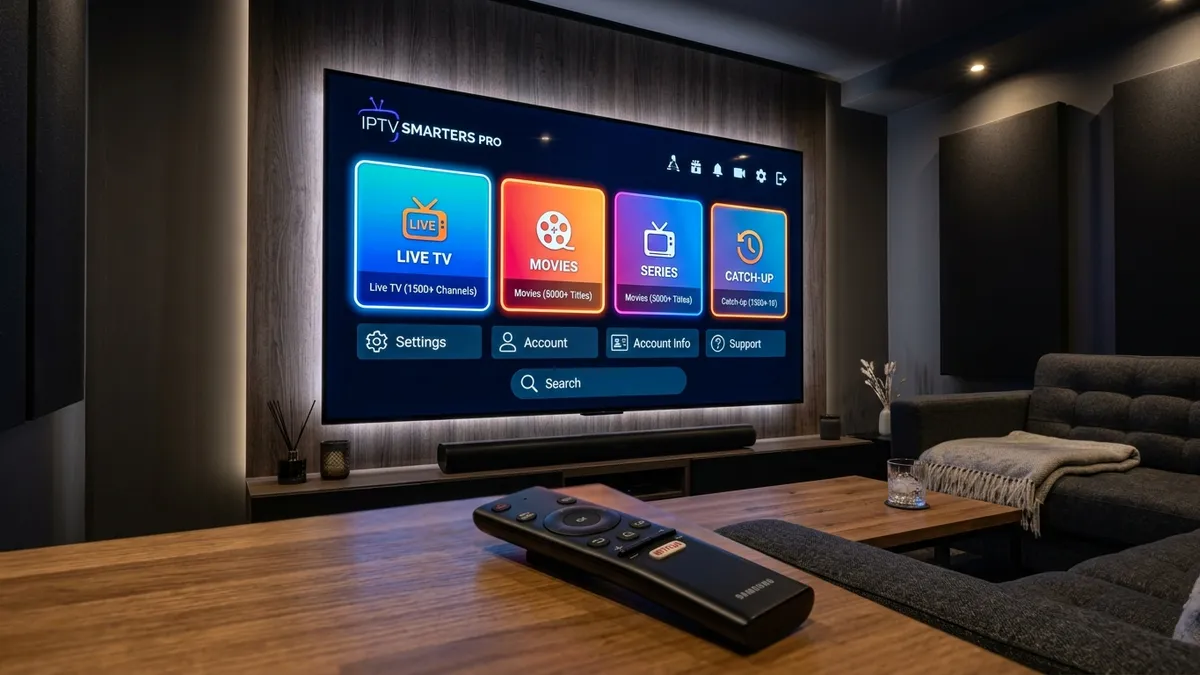
Vocotv with IPTV Smarters Pro: The Complete Setup Guide
While the official Vocotv application provides an incredible, plug-and-play viewing experience tailored specifically for our infrastructure, the beauty of the IPTV ecosystem is freedom of choice. Because our service is built upon standard, universally accepted streaming protocols (like Xtream Codes API and M3U playlists), you are completely free to utilize third-party media players.
One of the absolute most popular, feature-rich, and visually stunning applications on the market today is IPTV Smarters Pro.
In this detailed tutorial, we will walk you through exactly how to install and configure IPTV Smarters to work flawlessly with your Voco TV subscription. We will cover the installation process across multiple devices, how to authenticate your account, and the optimal settings you should tweak to get the absolute best performance.
If you don't have your login credentials yet, be sure to head over to our Pricing page to grab a subscription before you begin.
Why Choose IPTV Smarters Pro?
With dozens of players available (like TiviMate, XCIPTV, and iMPlayer), why do millions of users flock to Smarters?
- Multi-Platform Availability: Smarters is natively available on Android, iOS, Windows, Mac, and even many Smart TVs (LG WebOS and Samsung Tizen). It offers a unified experience across all your screens.
- Xtream Codes API Integration: Smarters handles the Xtream API beautifully. This means instead of messing with incredibly long and cumbersome M3U playlist URLs, you simply input a username, password, and server URL.
- Exceptional VOD Interface: If you love movies and series, Smarters parses IMDb data, cast information, ratings, and gorgeous high-resolution posters better than almost any free player on the market.
- Multi-Screen Support: You can watch up to 4 live events simultaneously on a single screen (assuming you have a multi-connection Vocotv subscription).
Step 1: Installing IPTV Smarters Pro
The installation method varies slightly depending on your hardware. We will cover the three most common platforms.
Method A: Android Devices & Smart TVs (Google Play)
If you are using an Android phone, tablet, or an official Android TV (like the Nvidia Shield or Sony Bravia), installation is incredibly simple.
- Open the Google Play Store.
- Search for
Smarters Player LiteorIPTV Smarters Pro. (Note: The developers frequently change the name slightly to comply with Google's evolving store policies, but the icon remains the same purple and blue design). - Click Install.
- Once installed, launch the application.
Method B: Amazon Firestick (Sideloading)
Amazon removed Smarters from their official Appstore a few years ago. Therefore, you must sideload it using the Downloader app. If you aren't familiar with Downloader, read Step 1 and 2 of our Firestick Installation Guide to enable developer options.
- Open the Downloader app on your Firestick.
- In the URL bar, enter the official direct download link for Smarters:
firesticktricks.com/smarter(or use the shortcode provided by the official Smarters website). - Click Go. The APK will download.
- Click Install when prompted.
- Click Open.
Method C: Apple iOS (iPhone, iPad, Apple TV)
- Open the Apple App Store.
- Search for
Smarters Player Lite. - Download and open the app.
Step 2: Configuring Smarters with Vocotv
Once you launch the application for the first time, you will be greeted with the Terms of Service. Accept them, and you will be brought to the main login screen.
You will see several options to add a user:
- Load your playlist or file/URL
- Login with Xtream Codes API
- Load your data from device
- Play single stream
The Xtream Codes API Method (Highly Recommended)
We strongly advise against using the playlist URL method. Using the API method is faster, more secure, and allows the app to pull the Electronic Program Guide (EPG) much more efficiently.
- Click on Login with Xtream Codes API.
- You will be presented with a 4-line login box. Fill it out exactly as follows:
- Any Name: Type
Vocotv(or whatever you want to name this profile). - Username: Enter the Username from your Vocotv welcome email. Note: Check for rogue spaces added by your device's autocorrect!
- Password: Enter your Password. Note: Passwords are strictly case-sensitive.
- http://url_here.com:port: Enter the Server Portal URL provided in your activation email. Make sure you include
http://at the beginning and the port number (e.g.,:8080) at the end if provided.
- Any Name: Type
- Click Add User.
Getting an "Invalid Details!" error?
If you see the error above, it means one of your credentials (Username, Password, or Portal URL) was entered incorrectly. Double-check for invisible spaces added by autocorrect, ensure strict case-sensitivity for the password, and verify the Portal URL is exactly as provided (including the
http://and port number).

The application will now connect to our servers. You will see a progress bar indicating that it is downloading Live Channels, VOD, and Series data. This can take anywhere from 10 seconds to a minute depending on your internet speed.
Once the download is complete, click on your newly created profile. You will be taken to the beautiful, modern dashboard.
Step 3: Optimal Settings for Maximum Performance
Now that you are connected to the Vocotv grid, let's dive into the settings to ensure you are getting the absolute best performance and avoiding any "Vocotv not working" errors.
Click the Gear Icon (Settings) in the top right corner of the dashboard.
1. Change the Player Engine
By default, Smarters uses a built-in software player. However, for 4K streams and high-bitrate sports, you want to utilize hardware decoding.
- Go to Player Selection.
- You will see options for Live TV, Movies, Series, and Catchup.
- Click on the default player and change it to Hardware Decoder or switch the core engine to VLC Player (if the option is available in your version of the app).
- If you ever experience audio out-of-sync issues, switching the player engine here is the fastest fix.
2. Stream Format Settings
- Go to Stream Format.
- Ensure it is set to MPEGTS (.ts) rather than HLS (.m3u8) for live television. .TS streams are generally more robust for live broadcasts, whereas HLS is better suited for VOD.
3. EPG Timeline Tweaks
- Go to EPG Timeline.
- Change the EPG load settings. Instead of loading the entire week of TV guide data (which can choke low-end devices with limited RAM), set it to only load the next 24 or 48 hours. This drastically speeds up the app's navigation responsiveness.
4. Automation Settings
- Go to Automation.
- Check the boxes for Auto-update Live TV, VOD, and Series on application startup. This ensures that every time you open Smarters, you are pulling the freshest links and latest channel additions directly from the Vocotv servers without having to manually refresh the list.
If you find that your stream is still pausing despite these optimizations, the issue is likely network-related. Please refer to our extensive guide on Vocotv Buffering Fixes to troubleshoot your local router and ISP connections.
Exploring the Features
Now that your setup is optimized, take a tour of the application.
- Catch Up TV: If you missed a live broadcast, navigate to the Catch Up section. Vocotv provides recording archives for many premium channels. You can rewind time up to 72 hours and watch exactly what you missed.
- Multi-Screen: On the main dashboard, click the Multi-Screen icon. You can split your television into 2, 3, or 4 distinct quadrants, allowing you to watch four different sports matches simultaneously. (Remember, doing this requires 4 active connections on your subscription plan. If you only have a 1-connection plan, attempting to play 4 streams will result in your account being temporarily blocked by the server firewall).
- Parental Controls: In the Settings menu, you can establish a master PIN code to lock out the Adult (XXX) categories or restrict specific movie genres from children in the house.
Conclusion
Pairing the backend power of Vocotv with the front-end elegance of IPTV Smarters Pro creates one of the most formidable home entertainment setups possible in 2026.
By following this tutorial and implementing the API login, you have ensured a stable, secure, and visually appealing portal into the world of digital cord-cutting. Take some time to customize your favorites list and explore the massive VOD libraries.
If you want to read more about how our platform stacks up against traditional cable, and learn about other compatible devices, read our complete Vocotv Review and Features Guide.
Need assistance with your API credentials or server URL? Reach out to our technical support staff immediately via our Contact Page.
Related Apps Articles
How to Set Up & Stream IPTV on Apple TV, iPhone, iPad & Mac (2026 Master Guide)
Master guide for setting up IPTV on Apple TV 4K, iPhone, iPad, and Mac. Compare top iOS/tvOS apps like iPlayTV, IPTVX, IPTV Smarters, and GSE Smart IPTV for VocoTV.
Read →The Best IPTV Boxes & Streaming Devices for 2026: Complete Comparison & Buyer's Guide
Discover the best IPTV boxes and streaming devices for 2026. In-depth comparison of Formuler Z11 Pro Max, Nvidia Shield TV Pro, Firestick 4K Max, Apple TV 4K, and MAG boxes for VocoTV.
Read →Best IPTV Services for Sports in 2026 (Live TV, PPV & 4K Streams)
Looking for the best IPTV services for sports in 2026? Compare top providers for NFL, Premier League, UFC PPV, NBA, and 4K buffer-free streaming.
Read →